



Does No Needed Windows Services Slow Your Computer?
Automatically translated
 Writer
One of the most frequent problems of computer users is the system performance that falls over time. A newly taken computer can be noticed that during the first days, during months or years, the opening time is extended, the programs react more late and slow down the overall usage experience. Although most users think that this condition is only due to hardware failure, the services that the operating system runs in the background also have significant impact on performance.
Windows operating system uses numerous services to perform hundreds of different tasks. One of these services is mandatory for the basic functions of the system. But some services are required only for users who use certain features. Continuous operation of unused services can improve the use of processor, RAM and disk.
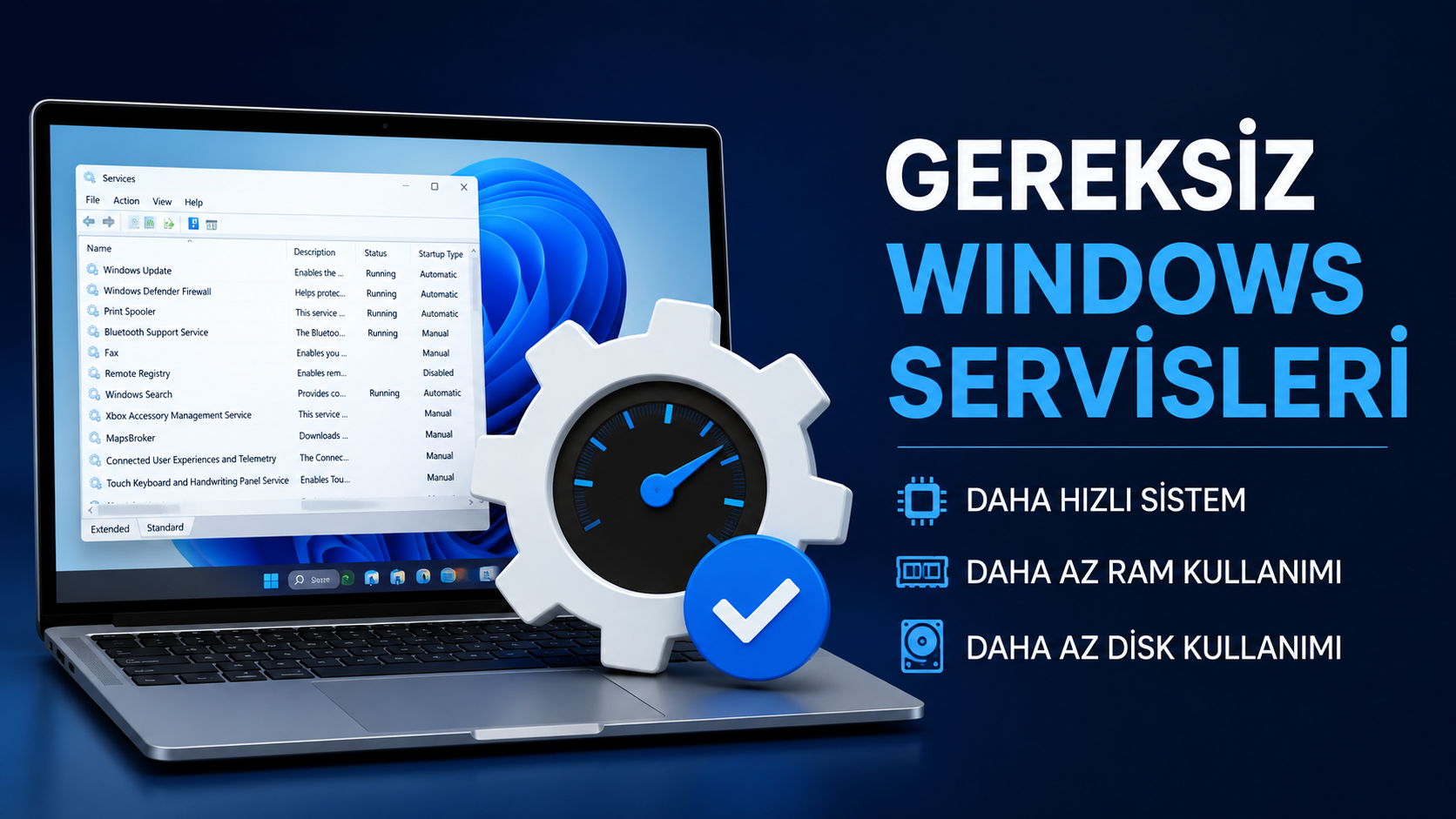
At this point, many users begin to research about unnecessary Windows services. What can really slow down the computer of unused services? Which services can be disabled securely? What should you pay attention to when making Windows optimization? Let's look at the bride details.
What Is Windows Services?
Windows services HomeThe operating system is the back plan components that work automatically when open or when certain conditions occur. If they are not directly seen by the user, they allow the system to work many features.
For example, working services for printing operations, services that govern network connections, update services and security components are part of this structure. Many services work continuously in active case without user aware.
As Windows’s modern versions address different user needs, it comes quite much service effectively. However, every user does not benefit from all these features. Therefore some services may cause unnecessary resource consumption.
This situation becomes more pronounced especially on older computers or devices with low system features. Reduction of unused services can provide more efficient use of system resources in some scenarios.
How Does Windows Services Affect Performance Unnecessed?
Every service running in the background consumes a certain amount of system resources. These consumptions that appear small alone can affect overall performance by accumulated over time.
Especially in computers with low RAM capacity unnecessary services can use a significant amount of memory. As a result, the amount of resources that may be divided into active applications decreases.
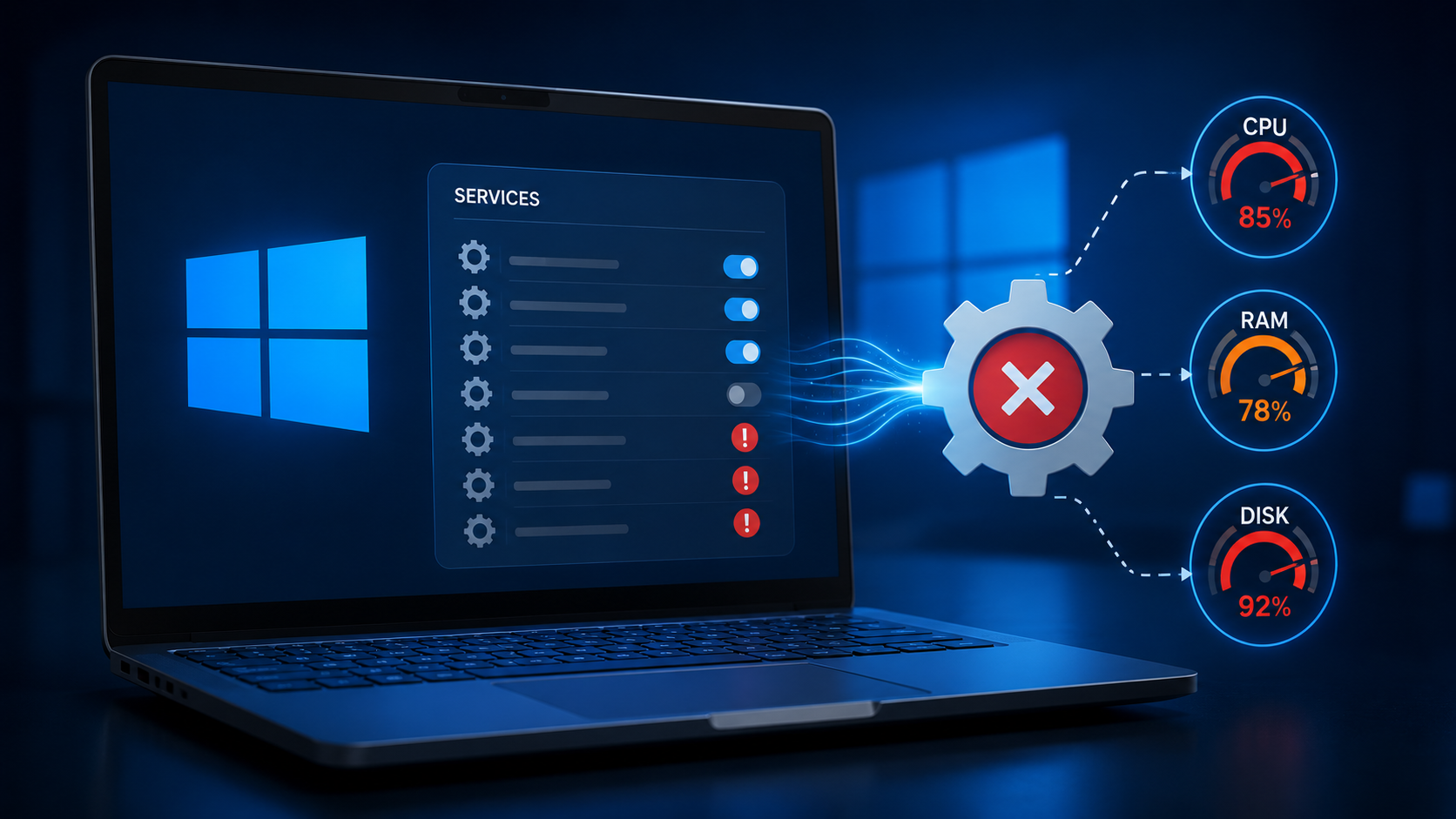
Similarly, some services perform regular disk access. This can lead to performance losses that are felt especially in systems that use mechanical hard disk.
CPU usage is also an important factor. Although modern services often work with low processor usage, the total load may increase when there are numerous active services. Therefore, it is often recommended to review unnecessary services between Windows performance enhancing methods.
Which Windows Services Can Be Unnecessed?
The important point here is that unnecessary services are different for each user. The service that a user does not need may be critical for another user.
For example, Print Spooler service can be unnecessary for those who don’t use printer. However, users who regularly print this service turn off leads to function loss.
People who do not use Bluetooth devices likewise may disable Bluetooth support services. However, users using wireless headphones or mouse need these services.
Some users can evaluate the following services:
Print Spooler (if not used)
News
Bluetooth Support Service
Home
Windows Insider Service
Downloaded Maps Manager
Xbox services Home
Touch Keyboard Service (if touch screen is not available)
Disabling these services can reduce the use of resources in certain scenarios.
What Can I Do For Windows Performance Enhancing?
Service optimization is not the only element that affects performance, although useful. Computer acceleration operations different methods should also be evaluated.
It is important to check the initial programs first. Unnecessariable apps running while computer opens can dramatically extend the opening time.
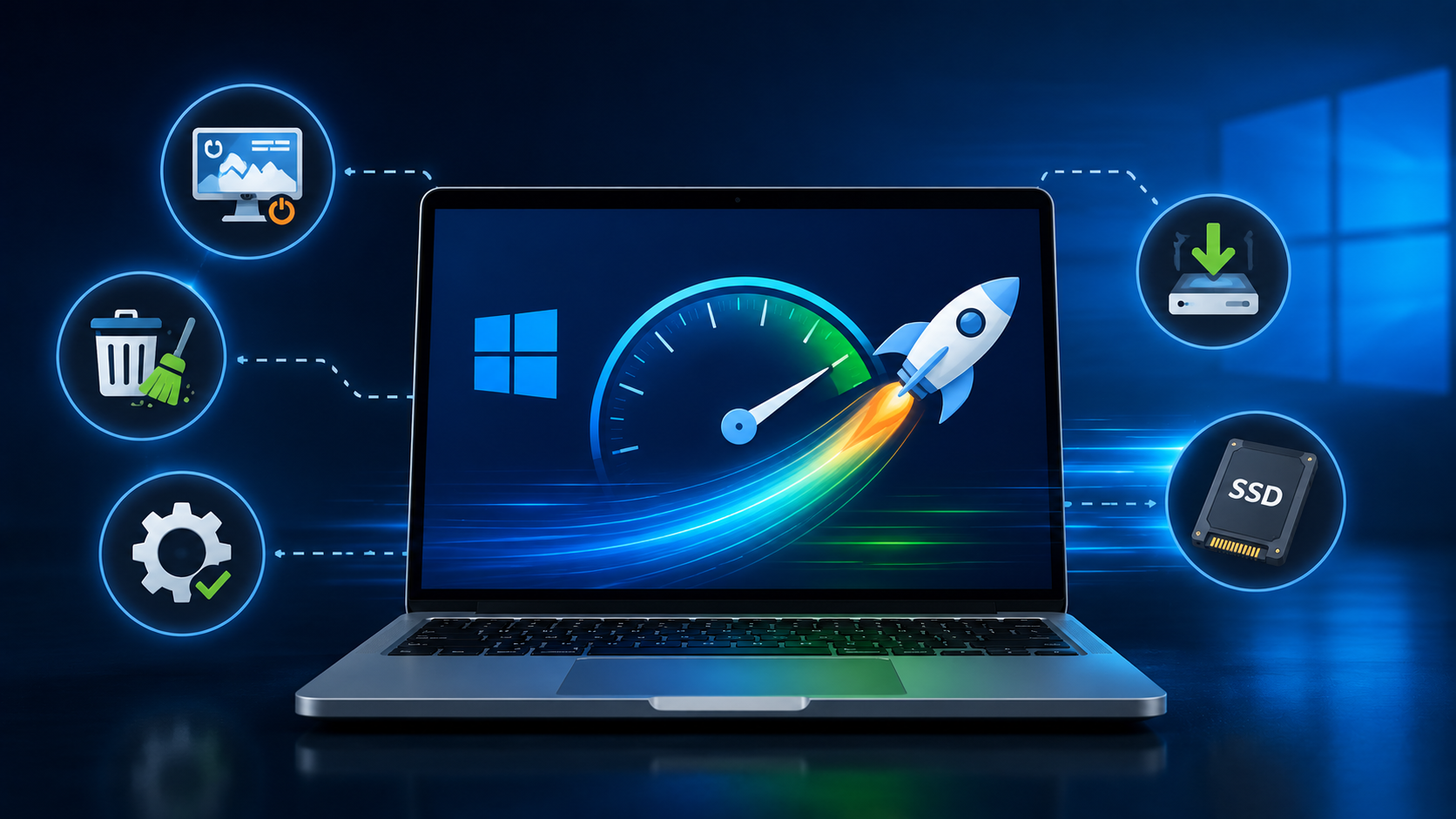
Regular cleaning of storage space also contributes to performance. Temporary files can consume unused applications and unnecessary data system resources.
Using current drivers can also positively affect performance. It is recommended to keep up-to-date of screen card and chipset drivers especially. SSD usage is one of the most effective solutions in performance growth. Even on an old computer, the use of SSD can make a big difference.
Common Errors For Computer Acceleration
Some processes for performance enhancing may lead to the exact reverse of the expected result.
For example, bulk optimization packages on the internet or unknown software can make uncontrolled changes on the system. This can also create security risks besides performance problems.
Similarly, trying to disable all services is a wrong approach. Many services are required for Windows to work properly.
Some users can also choose to close updates completely. However, this may prevent security disclosure and cause greater problems in the long run. Therefore, optimization processes must be done consciously and controlled.
Service Management on Windows 11 and Windows 10
Service management in Windows 10 and Windows 11 versions works quite similarly.
Users Start menu "Services" or "Services" typing can reach service management screen. From here, the operating status of services can be viewed and the starting types can be changed.
Start types are usually comprised of these options:
Automatic
Automatic (Getting)
Manual
Non-stop
Instead of completely closeing a service, getting manual fashion can often be a safer choice. Thus, the service works only when needed.
This method can give more balanced results in both performance and system stability.
How Can Windows Service Management Change In The Future?
Microsoft has been doing various improvements to make Windows services more efficient in recent years. Modern operating systems can now manage unused services smarterly.
Combined with the widespreadization of AI-supported optimization systems Service management in the future Home can become more automated. The operating system can optimise the services that are not needed by analyzing the habits of the user.
This approach can improve performance and reduce energy consumption. Especially in laptops, it can offer significant advantages in terms of battery life.
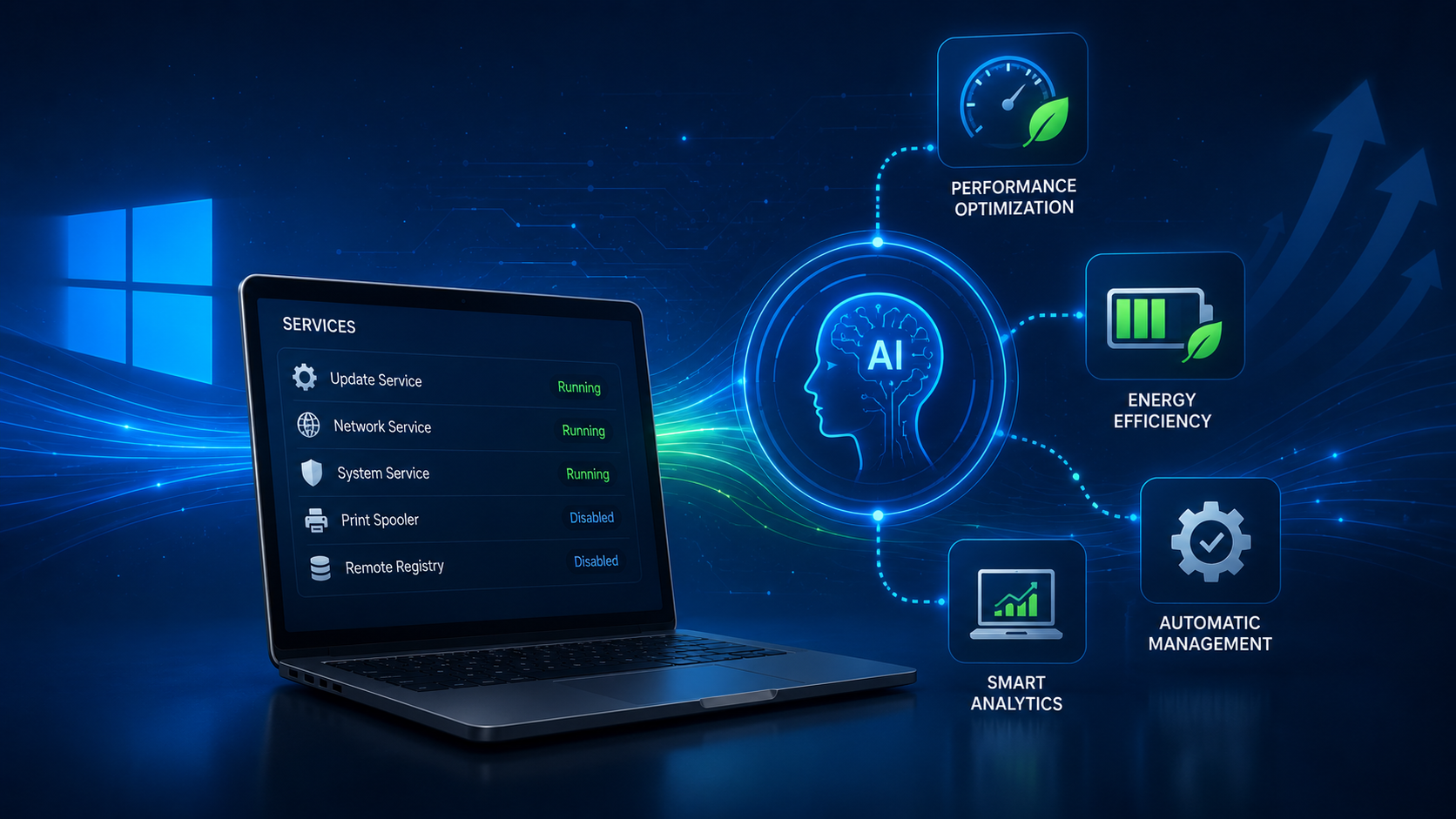
Windows optimization in future u It is expected to be done automatically without requiring user intervention of large parts of operations.
Unnecessed Windows services may negatively affect computer performance in some cases. In particular, reduction of unused services in low-equipped systems can provide more efficient resource utilization.
However, it is not a correct approach to closing each service. The tasks of the services should be understood well and changes only on the components that do not really need.
In addition to service optimization in Windows performance enhancing process, methods such as editing, storage cleaning, driver updates and SSD usage should also be evaluated.
Windows optimization, when applied correctly, can help the computer run faster and more fluid. However, the system stability and safety should be kept in the forefront.
Frequently Asked Questions
How to Slow Windows Services Computer Without Needs?
Yes. Unused services can consume RAM, processor and disk resources. Can create performance loss especially in low-equipped systems.
Which Windows Services Can Be Secured?
This situation varies according to user requirements. Print Spooler for those who don’t use printer can be assessed some services like Bluetooth services for those who don’t use Bluetooth.
How Much Does Windows Optimization Performance Increase?
The amount of earnings depends on system features. In particular, reduction of unnecessary services in old computers can provide improved performance.
Is It Accurate to Closing All Windows Services?
No. Many services are necessary for proper operation of the operating system. Unconscious changes can lead to system errors.
How to Manage Services on Windows 11?
Opening the Services screen from the Start menu and operating status and start settings of the services can be changed.
What is the Most Effective Method for Computer Acceleration?
The use of SSD is often among the most effective methods of removing unnecessary starting programs and regular system maintenance.
How to Improve Windows Update Performance?
It can provide small gains in short term but is not recommended for safety and stability. Keeping updates open is a healthier approach.
WriteriPhone Reklam Engelleme İçin Yeni Nesil Çözüm Geldi


Türkiyenin En İyi Yapay Zeka Platformları